

How To Install Track-It™ Drivers and Software
When downloading or installing Track-It™ DataLogger Software and the associated USB Drivers, most (if not all) issues that arise are Windows® related, company security policy, or computer hardware setup. Let’s tackle these situations!
Make sure you have the latest version of Track-It™ DataLogger Software! Older versions cannot be installed on Windows 10 or 11.
Table Of Contents
- Downloading Track-It™ Software Files
- Managing Windows® Security Measures
- COM Port Verification
- Manual Installation of Ports
- Installing Track-It™ Data Logger USB Drivers and Software
Downloading Track-It™ Software Files
Monarch Instrument’s Track-It™ DataLogger Software (and associated USB Drivers) is free to download from our website (www.monarchinstrument.com) for use on as many computers as desired. (Note that it will typically download to the Downloads folder as a ZIP file which will need to be unzipped. Download is available on all Track-It™ product pages except RFID – see tabs.)
Windows Defender or other antivirus programs may block the software download because it has executable files. See Track-It DataLogger Software tab on product pages for instructions.
How To Proceed
Temporarily turn off Windows Defender (or other antivirus software) before downloading Track-It™ DataLogger Software.
Managing Windows® Security Measures
There are a few things to understand when downloading and installing Track-It™ Data Logger USB Drivers and Track-It™ Software on PCs with Windows 7, 10, and 11. To provide “security and privacy measures”, Windows 10 and 11 restrict users in what they can install (software and drivers) and where they can install them.
How To Proceed
Track-It™ Software is a 32-bit application. Installing a 32-bit application on a computer with a 64-bit Windows® operating system automatically sends the installation files to Program Files (x86). So, confirm the sharing and control settings in this subfolder.
How to check sharing and control over the Program Files (x86) folder

From File Explorer, select This PC or Computer. Open the Local Disk (C:) drive. Select the Program Files (x86) folder, right click, and select Properties.
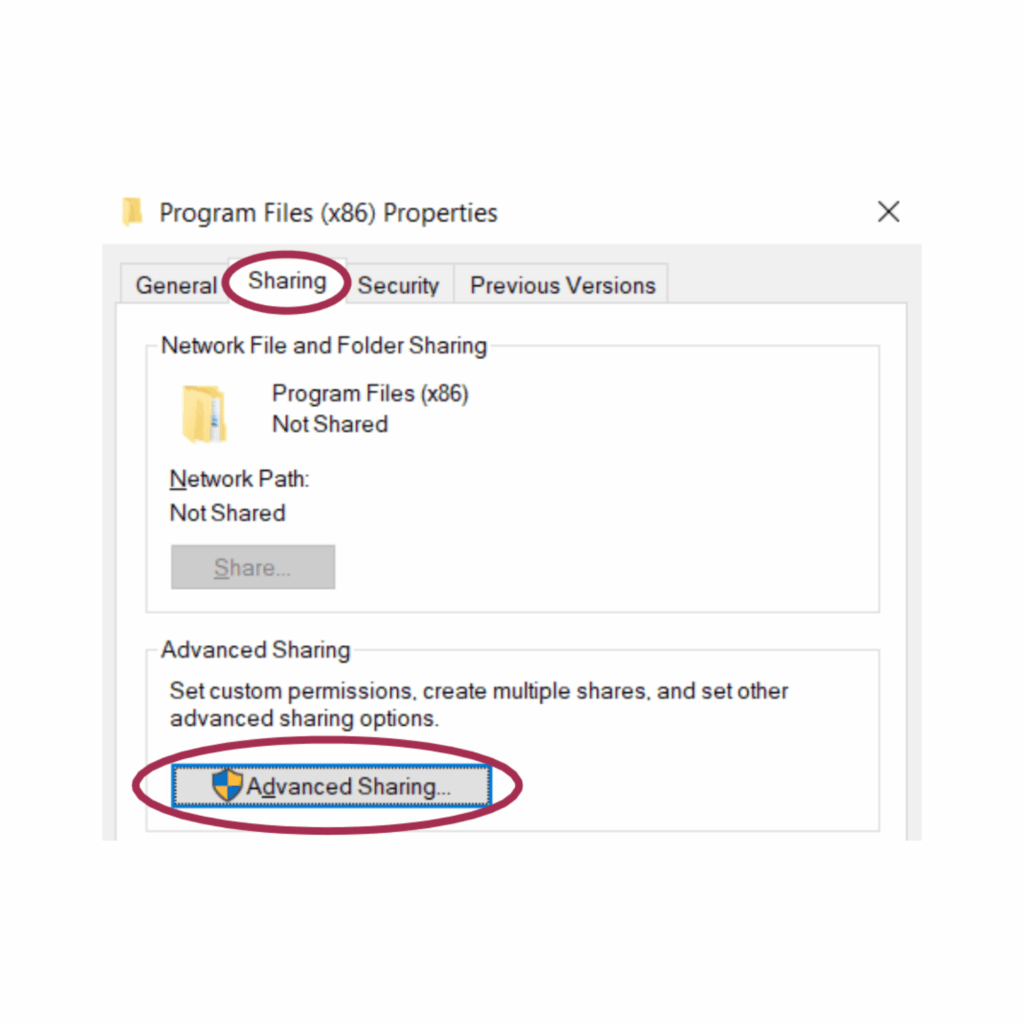
On the Advanced Sharing screen, be sure that Share this folder box is checked. Then click the Permissions button.

On the Advanced Sharing screen, be sure that Share this folder box is checked. Then click the Permissions button.
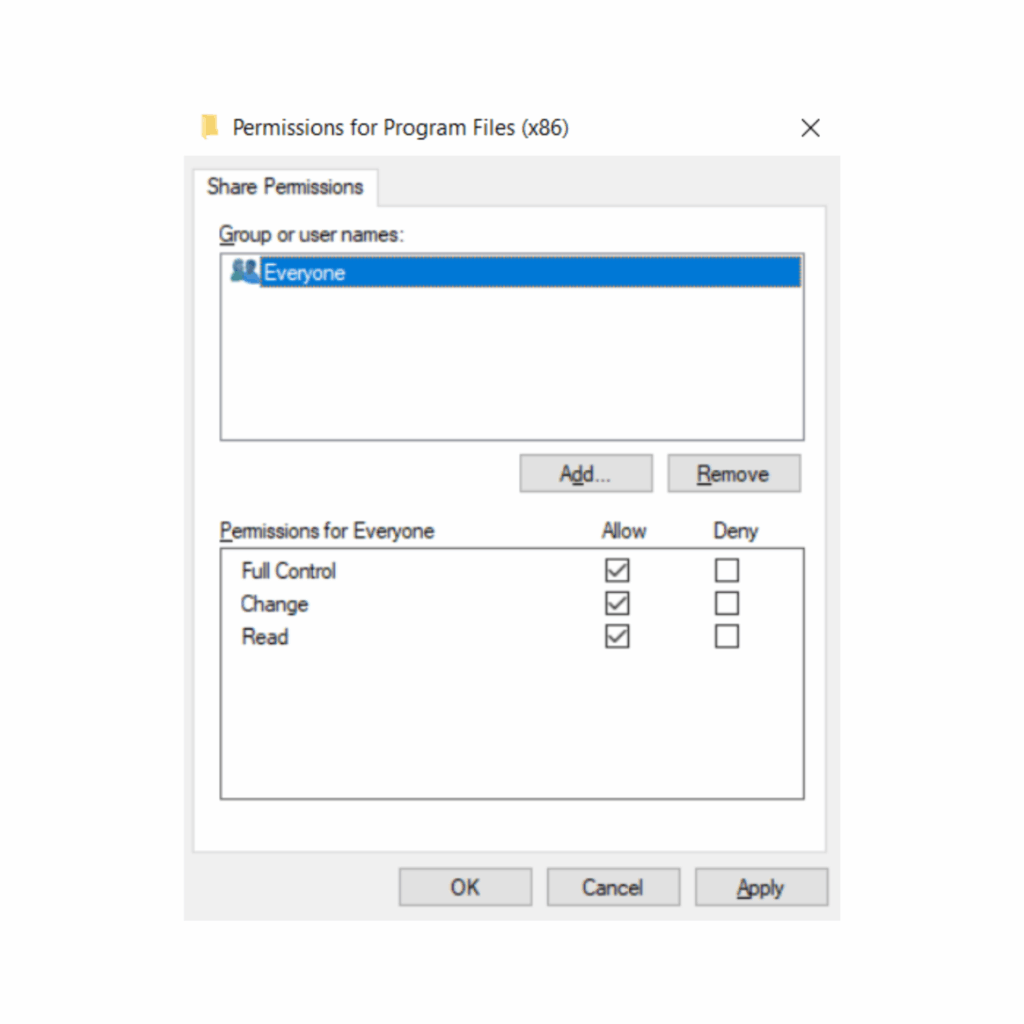
Choose desired Group or user names. Select Permissions for Everyone as desired. Click OK. Click OK again and then Close to close the Program Files (x86) Properties screen.
COM Port Verification
Important note before installing — Before installing the necessary USB Drivers for Track-It™ Software, confirm that your Windows® PC has Communications Ports activated.
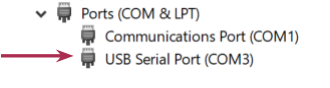
Monarch Instrument’s USB devices use virtual COM port drivers. This means that once the USB Drivers have been installed and the data logger is plugged in, the data logger will appear as a Communications Port titled USB Serial Port (COMx) (where x is the number assigned by the PC) listed under Ports (COM & LPT) in the Device Manager.
To demonstrate, the image below shows a data logger plugged in that was assigned COM3 (although it can be any number that your computer assigns to it.)
To verify Communications Ports are activated, open Device Manager and see if Ports (COM & LPT) is listed. (Note that installed devices are in alphabetical order.)
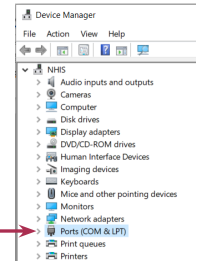
If Ports (COM & LPT) is listed, then it is OK to proceed to the installation of the Track-It™ Drivers and Software.
If it is NOT listed, then Ports must be manually added. See below for instructions on how to manually install Ports. Most users are able to do the installation, but in some very security-conscious companies, an IT representative may have to do these steps.
Manual Installation of Ports
Important note before installing — DO NOT have a data logger plugged into a USB port during installation of ports or drivers.
To install the necessary Ports, complete the following steps:
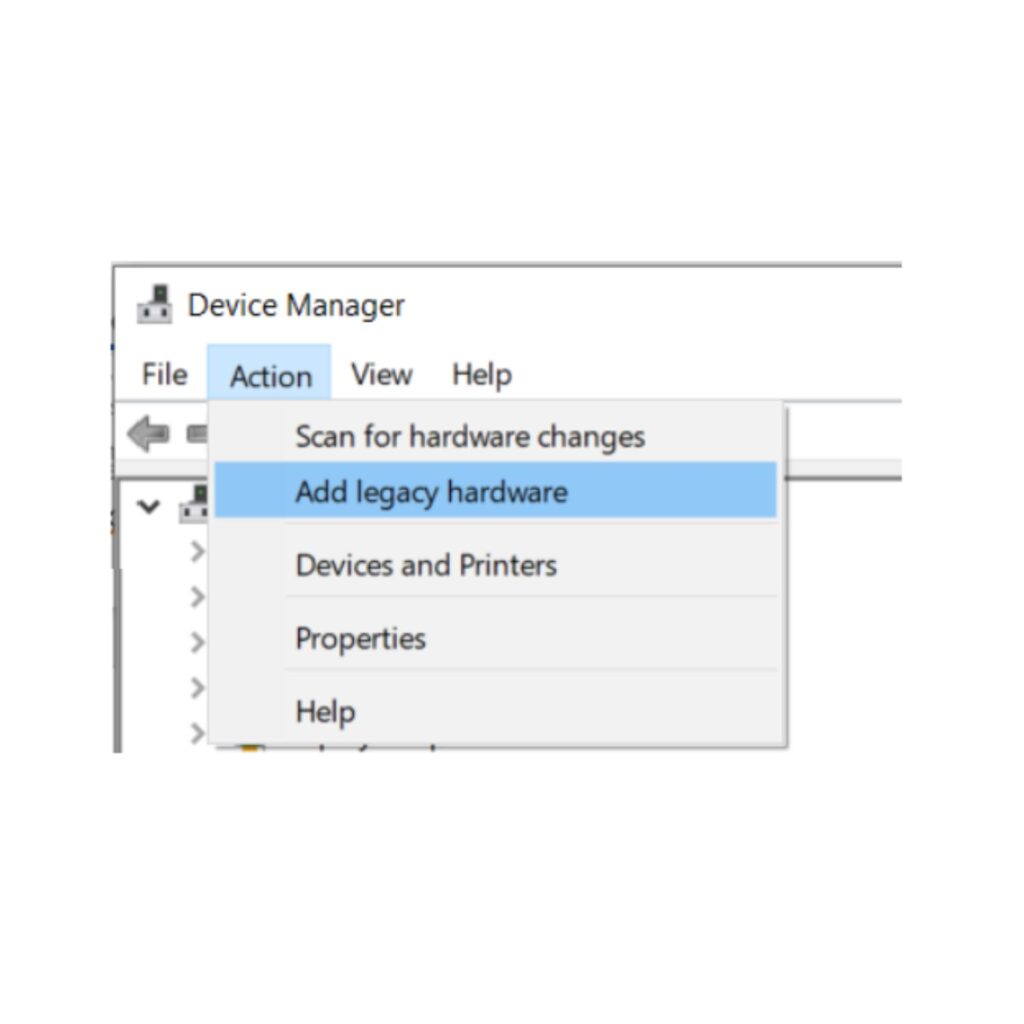
Open Device Manager and click on Add legacy hardware from the Action menu. NOTE: You must click on any item in the list for the complete list of actions to be displayed under the Action menu.
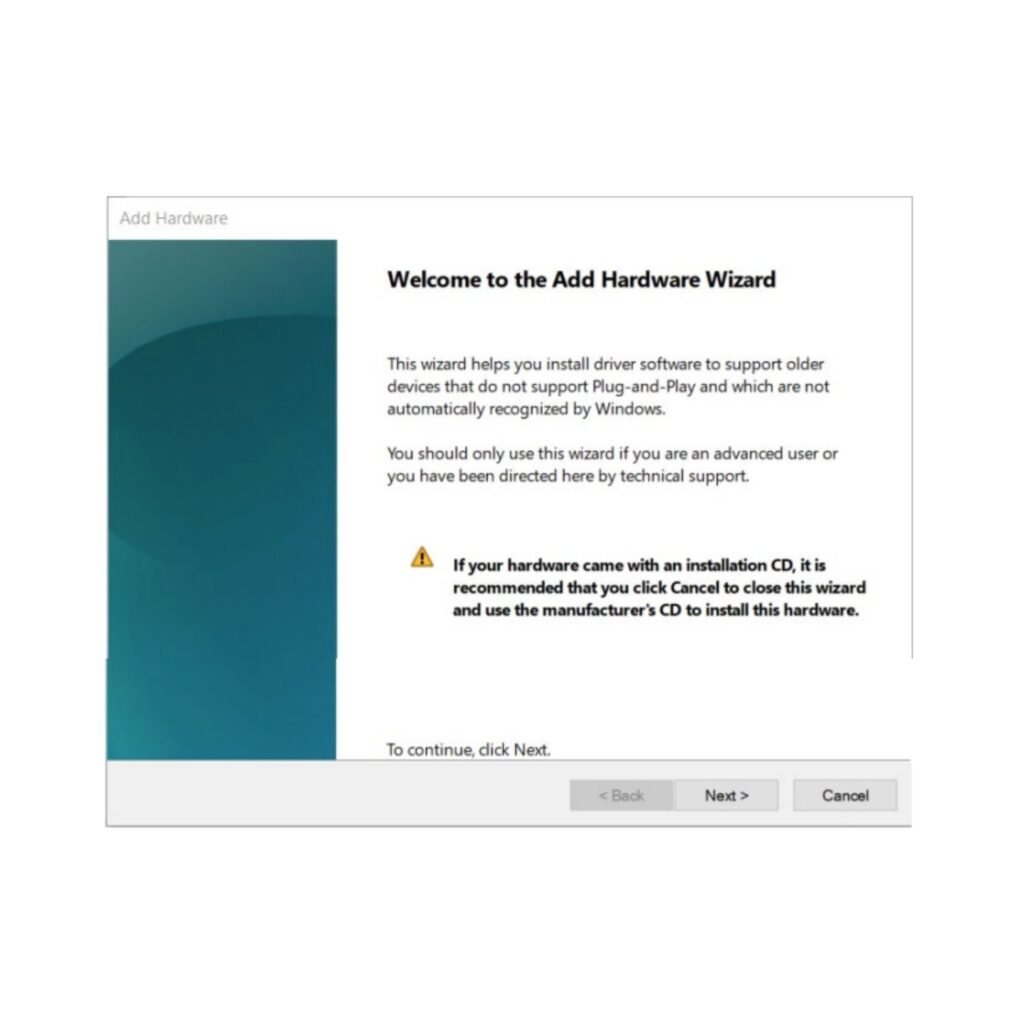
This will open the Add Hardware Wizard. Click Next.
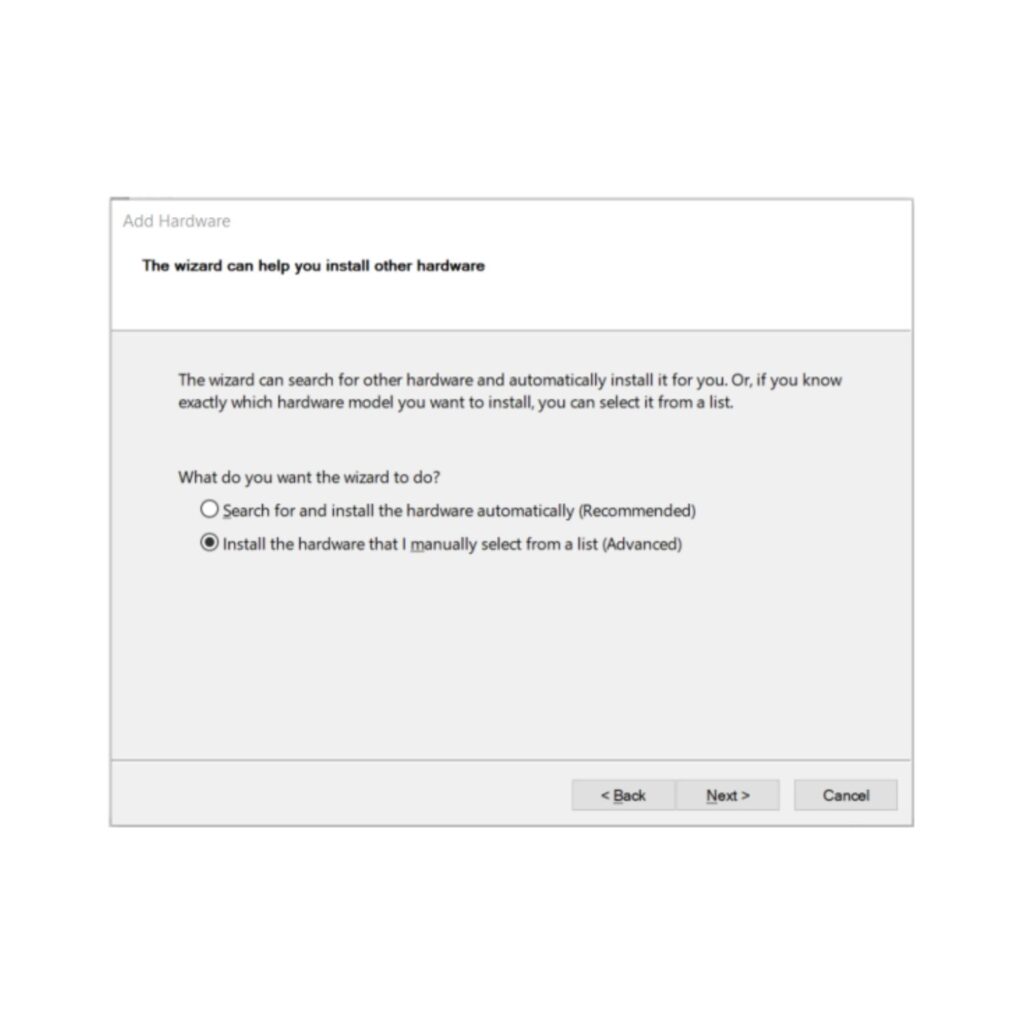
On the next Add Hardware screen, select Install the hardware that I manually select from a list (Advanced). Click Next.
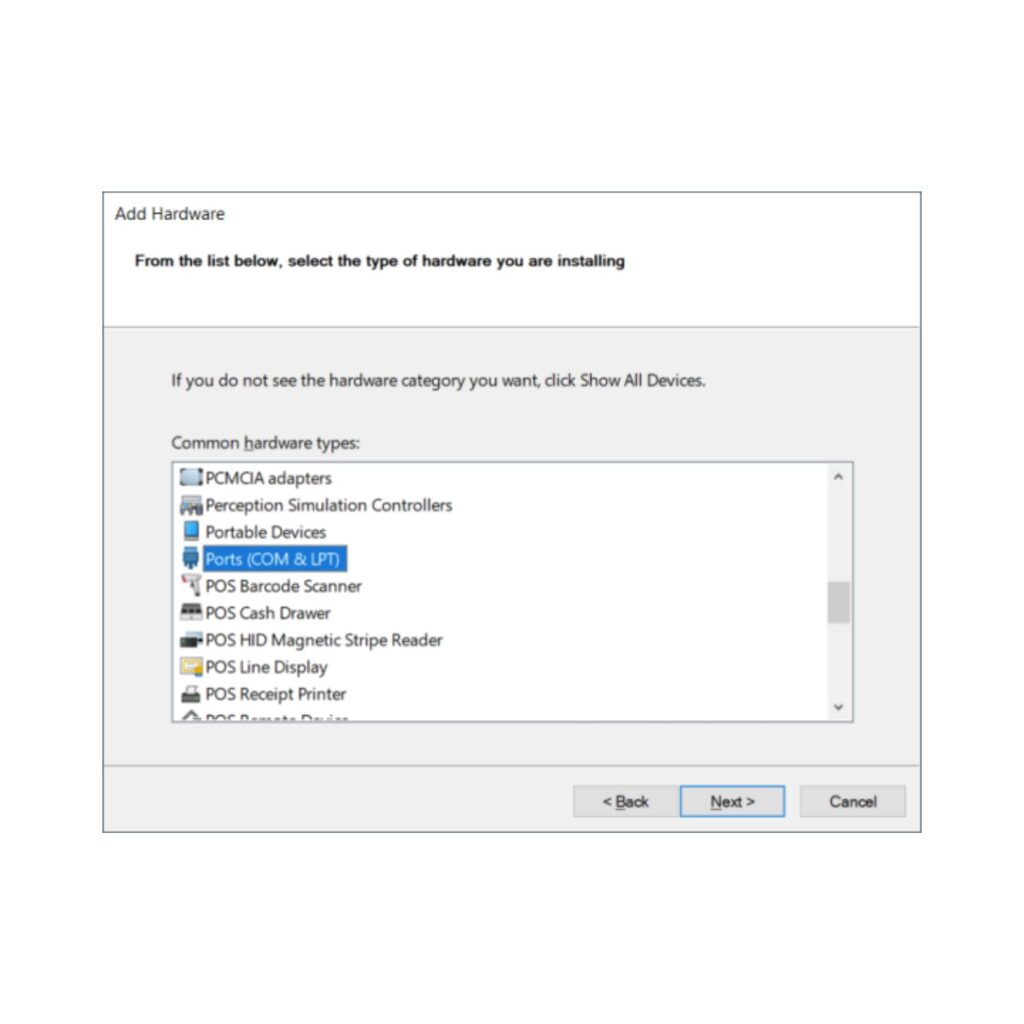
On the next screen, scroll down the list of Common hardware types and select Ports (COM & LPT). Click Next.

On the next screen (below), under Manufacturer, select (Standard port types). Under Model, select Communications Port. Click Next.
NOTE: It is essential that Standard port types and Communications Port are listed and can be selected as shown above. If not, then the PC may not have the hardware necessary to support Monarch Data Loggers. This is very rare, but some Windows PCs do not have the full Microsoft feature set. In the event this happens, contact Monarch.

Click Next again to install the Communications Port. Once complete, click Finish to close the Add Hardware Wizard.
Installing Track-It™ Data Logger USB Drivers and Software
Important note before installing — DO NOT have a data logger plugged into a USB port during installation of drivers or software.
Due to Windows® stringent safety protocols, it is required that the Track-It™ user be an administrator with full access. Note that in companies or organizations with strict IT protocols, IT specialists may have to do this installation.
The Track-It™ installation files will be downloaded to a compressed ZIP file, which will need to be upzipped/extracted. The unzipped file folder contains multiple subfolders and files.

Double-click on the Track-It_Software folder and then right click on CD_Start.exe and select Run as administrator. This will open the Track-It™ Software Installation menu as shown right.
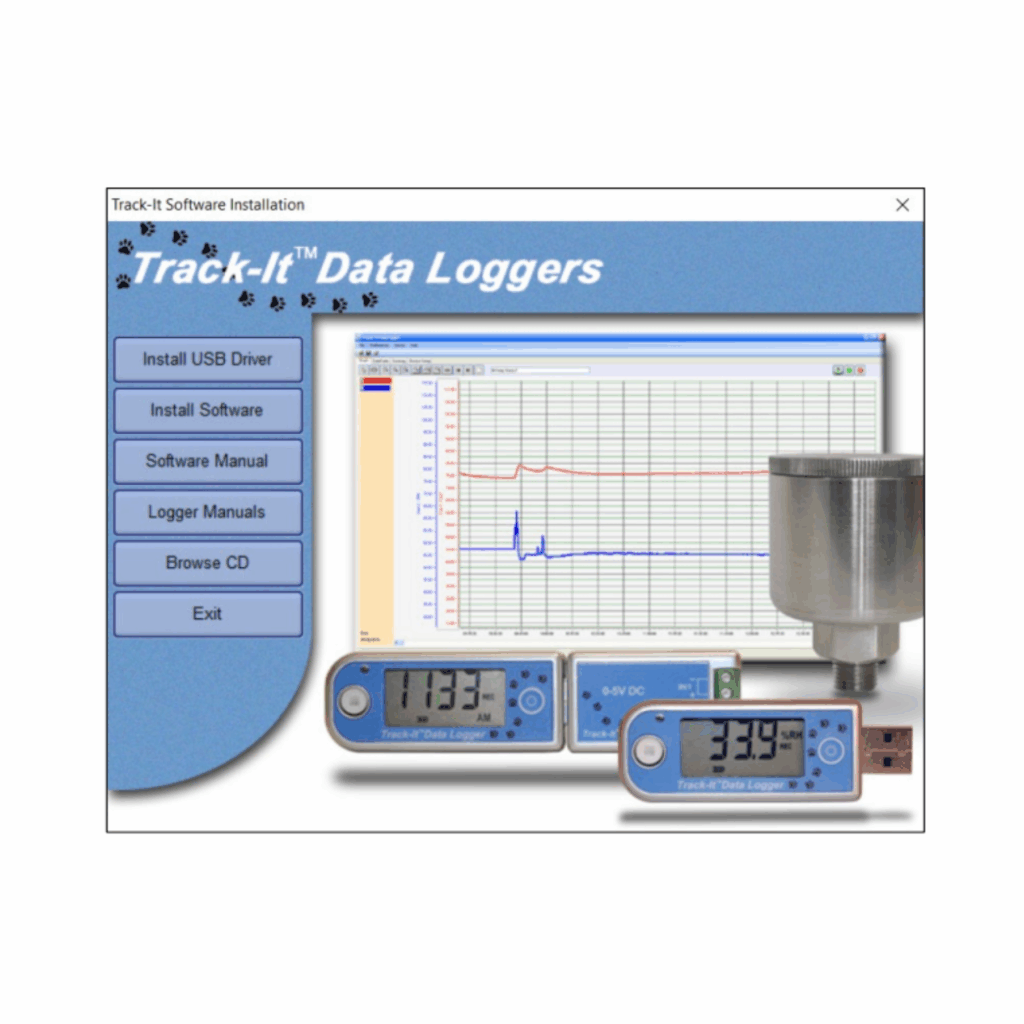
Click on Install USB Driver and follow the prompts. Accept any security measures and the License Agreement to continue installation. Once the USB Drivers are installed, click on Install Software and follow the instructions to complete the installation. For more detailed instructions on installation, click on Software Manual (which will open the Track-It™ DataLogger Software manual) and read through section 1.0.
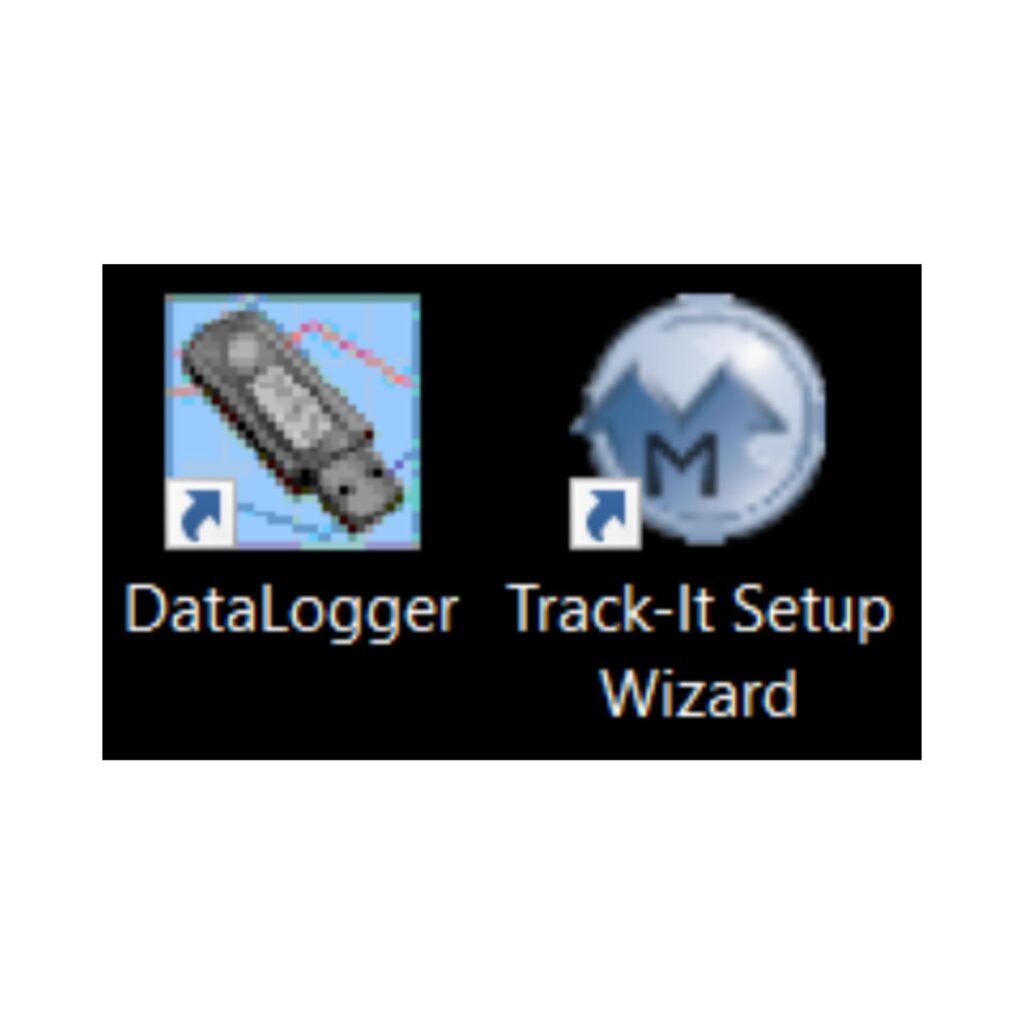
If “Create shortcuts on Desktop” is selected during installation, you will see these two icons on your Desktop.
You are now ready to plug in your data logger into a USB port on your computer, open Track-It™ DataLogger Software, and set up your logger to record data!


